

This is an old revision of the document!
Table of Contents
Eclipse IDE
The Eclipse IDE Integrated Development Environment is open source and provides an excellent environment to develop web applications. I migrated the LAMP server from XAMPP to WSL (Windows Subsystem for Linux) with the arrival of Windows 10. See here for XAMPP related instructions.
| Application | Version |
|---|---|
| Eclipse for PHP Developers | 2024-03 |
| OS | Debian 12.5 |
| Apache | 2.4.59 |
| PHP | 8.3.7 |
| MariaDB | 10.11.61 |
WSL Settings
- To change the default setting of WSL (WSL1/WSL2) to allow file permissions on mounted Windows drives add the file
wsl.confwith the following content to/etcin your linux distro:[automount] options="metadata,umask=22,fmask=11"
- Stop wsl from the Windows command line:
wsl --shutdown [OR] wsl -t NAME
- Start wsl from the Windows command line:
wsl [OR] wsl --distribution NAME
- Check wsl instances from the Windows command line:
wsl -l -v
Install Eclipse IDE on WSL2
From the next chapter onwards this guide explains how to use Eclipse IDE under Windows. Installing Eclipse within Debian and running it from Windows through an X-Server has the huge advantage that the file permissions are maintained propberly. This chapter is taken from Run Eclipse in WSL2 with changes to adapt to my particular environment, specially that I run WSL2 in mirrored networking mode. To do that, create file C:\Users\<user>\.wslconfig with the following content:
[wsl2]
networkingMode=mirrored
Setup
Access WSL2 using putty Run Eclipse on WSL2 Ubuntu, displaying the Eclipse UI on VcXsrv running on Windows Connecting to VcXsrv directly from WSL2 Using SSH X11 forwarding, with network connection initiated from Windows to WSL2 Ubuntu, which is particularly useful on company laptops that refuse all incoming network connections on Windows. Prerequisites:
WSL2 up and running Putty, Plink & PuttyGen installed on Windows WSL2 Ubuntu: Install & configure OpenSSH
sudo apt install openssh-server
Edit /etc/ssh/sshd_config:
X11Forwarding yes
X11DisplayOffset 10
X11UseLocalhost no
sudo ssh-keygen -A
sudo service ssh start
Auto-start SSH daemon:
WSL2 Ubuntu: mkdir -p ~/bin ; echo “sudo service ssh start” » ~/bin/startup.sh Windows: Create scheduled task that runs on user logon, running C:\Windows\System32\bash.exe with arguments /home/<user>/bin/startup.sh Windows: Configure SSH public key authentication using PuttyGen:
See https://www.puttygen.com/#How_to_use_PuTTYgen for general instructions Run PuttyGen Generate new key pair, or convert existing key pair Save private key to ppk file; this will used later when connecting to WSL2 Ubuntu using Putty or PLink Add the SSH public key to ~/.ssh/authorized_keys on WSL2 Ubuntu Windows: Create putty profile to connect to WSL2 Ubuntu:
Session Host Name: localhost Port: 22 (or whatever OpenSSH port you configured on WSL2 Ubuntu) Connection → Data: Auto-login username: <your user name> Connection → SSH → Auth: Private key file for authentication: <key file generated by PuttyGen in step #2> Connection → SSH → X11: Enable X11 forwarding (if you want to start X11 programs) X display location: 127.0.0.1:0.0 (this should match whatever DISPLAY value is shown in VcXsrv logs) Windows: Install & configure VcXsrv:
Download & install https://sourceforge.net/projects/vcxsrv/ Copy config.xlaunch as shown below to the Startup folder (Win+R: shell:startup) Launch config.xlaunch to start the X Server manually for now WSL2 Ubuntu: Install Eclipse & prerequisites:
sudo apt-get install openjdk-11-jdk sudo apt-get install libgtk-3-0 Download and unpack Eclipse for Linux to ~/eclipse Windows: Eclipse shortcut using SSH X11 tunnel:
Manually try starting Eclipse from Windows by running the following command: plink.exe -batch -X -i <path to .ppk from step #2> <Ubuntu username>@localhost ~/eclipse/eclipse Copy silent.vbs and plink-silent.cmd (see attached files) to the directory where PLink.exe is installed Create a new shortcut that runs the following command: C:\Windows\System32\cmd.exe /c “C:\<path to plink>\plink-silent.cmd -batch -X -i <path to .ppk from step #2> <Ubuntu username>@localhost ~/eclipse/eclipse” Double-click the shortcut; if all is well you should see the Eclipse UI after a couple of seconds Windows: Eclipse shortcut using direct XServer connection:
Add the following lines to ~/.profile on WSL2 Ubuntu (create file if it doesn't yet exist): export DISPLAY=:0 export LIBGL_ALWAYS_INDIRECT=1 Note that having these lines in .bashrc won't work as .bashrc is only loaded for interactive shells Create a new shortcut that runs the following command: C:\Windows\System32\wsl.exe -u <WSL2 user> – bash -lc 'nohup ~/eclipse/eclipse' ^& sleep 1
LAMP with Xdebug
- Follow LAMP on Debian 12
Eclipse IDE
PHP
- Make sure
display_errorsis set to ON in apache's php.ini file and not overridden in the apache VirtualHost file
Java
Eclipse requires Java to run, so install this first.
- Install Java Runtime Environment 32 Bit Version or 64 Bit Version
- If you have recently installed Java 8 and uninstalled older versions, install Java SE Development Kit 8 and retry.
- If you get a Java was started but returned exit code=13 error, you most likely installed the wrong Java version. Try re-installing Java with the 64-bit version, or vice versa.
Eclipse
- Install Eclipse for PHP Developers
- Choose x:\ as installation path, where “x” can be any drive letter available to your system, also a portable one.
JavaScript
Links
TypeScript
Install the TypeScript IDE for Eclipse.
- In Eclipse go to Help → Install New Software…
- Provide the installation location http://axmor.bitbucket.org/typecs/stable/update-site/
- Mark the plugin version you would like to install then press Next…
- On Install Details press Next…
- Review and confirm the plugin to install.
- Restart Eclipse.
Settings
- Go to Window → Preferences → General and enable “Show heap status”.
- Go to Window → Preferences → General → Workspace and modify the Workspace settings.
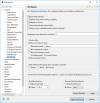
- Go to Window → Preferences → General → Web browser and set the desired browser for browser output.
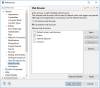
- Go to Window → Preferences → PHP → Servers and enter the web server settings.
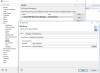
- Go to Window → Preferences → PHP → Validation and set the PHP version.
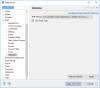
- Go to Window → Preferences → PHP → Debug → Debuggers and check the XDebug settings. They must comply with the settings in the php.ini file. Set “Accept remote session (JIT)” to off if you don't want the debugger to automatically start when opening any URL on localhost.
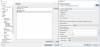
- There are three places where the “Break on first line” configuration can be set:
- Window → Preferences → PHP → Debug
- Project → Properties → PHP → Debug
- Run → Debug Configurations → PHP Web Application → <Your configuration> → Debugger
- Add or Edit Debug Configurations…. If you pointed the DocumentRoot to your workspace, then you can leave the URL on “Auto Generate”, otherwise you must modify the URL.
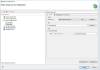
- Window –> Preferences –> PHP –> Code Style –> Formatter. Select “PHP Conventions” as active profile.
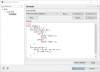
- Window –> Preferences –> General –> Editors –> Text Editors. Uncheck “Use find/replace overlay” (see Eclipse 2024-09 Is there a way to get the old Find/Replace window back?)
- If you have existing projects
- either select the project directory as workspace when first starting up the new eclipse, or
- delete the workspace directories and files (filenames start with “.”), then import the project directories with File –> Import –> General –> Existing Projects into Workspace


